 Scoop
UI 教程:桌面集成与异步
本篇是 UI 教程的第 19–21 章。前面各篇都只有一个窗口,入口是 runUiApplication;本篇改为显式创建 Application 和 UiHost,从而管理多个窗口、原生菜单栏和托盘,再介绍自绘标题栏、原生对话框以及后台任务。上一篇:自绘元素;下一篇:测试 UI。
本篇示例都在 macOS 上验证过。运行命令与前面相同;Windows 工具包的主驱动名为 sco,把命令中的 scoop 换成 sco 即可。各平台的差异在相应小节单独说明。
19. 应用根与多窗口
19.1 runUiApplication 做了什么
runUiApplication(title, create) 是单窗口应用的快捷入口。它大致相当于下面的几步:
- 创建
Application,选项为“最后一个窗口销毁后退出”; - 创建
UiHost,在应用启动事件Resumed中新建一个窗口,并用host.attach(window, create)挂载根组件; - 用户点击窗口的关闭按钮时(
CloseRequested)请求退出; - 用
UiHost.use { host -> application.run(host) }运行事件循环,返回时关闭宿主及其中所有 UI。
只要需求超出“一个窗口、关掉就退出”,就要自己写这几步:多个窗口、应用级菜单栏、托盘、关闭前确认、退出后还要清理后台线程,或者需要 asyncio 协程(第 21 章)。
这里涉及三个对象,分工如下:
| 对象 | 来自 | 职责 |
|---|---|---|
Application |
scoop.window |
一个进程只能创建一个,运行原生事件循环;applicationOptions { ... } 配置选项 |
ActiveApplication |
scoop.window |
事件循环运行期间可用:createWindow、requestExit、proxy() |
UiHost |
scoop.ui |
接收应用事件,把组件树挂到窗口(attach)或应用本身(attachApplication) |
UiHost 的 handler 参数接收 (UiHost, ActiveApplication, ApplicationEvent),所有窗口的事件都从这里经过,以 ApplicationEvent.Window(id, event) 区分来自哪个窗口。
19.2 多窗口:共享状态与各自的状态
下面的程序可以打开任意多个文档窗口。每个窗口显示两个计数:所有窗口共享的点击数,以及本窗口自己的点击数。保存为 ui-desktop-windows.scoop(下载):
//! dep: scoop:scoop.graphics:0.1.0
//! dep: scoop:scoop.ui:0.1.0
//! dep: scoop:scoop.ui.component:0.1.0
//! dep: scoop:scoop.ui.style:0.1.0
//! dep: scoop:scoop.ui.style.macos:0.1.0
//! dep: scoop:scoop.window:0.1.0
import scoop.graphics.Paint
import scoop.ui.*
import scoop.ui.component.*
import scoop.ui.style.ThemeMode
import scoop.ui.style.ThemeSource
import scoop.ui.style.currentThemeSource
import scoop.ui.style.macos.macosTheme
import scoop.window.*

// Business state shared by every window and by the application menu.
class Workspace {
    val clicks = state(0)
    val windowCount = state(0)
    private val windows = ArrayList<Window>()
    private var nextNumber = 1
    private var host: UiHost? = None
    private var active: ActiveApplication? = None

    fun event(host: UiHost, application: ActiveApplication, event: ApplicationEvent) {
        when (event) {
            case Resumed -> {
                this.host = Some(host)
                active = Some(application)
                host.attachApplication(application) { scope -> AppMenu(this, scope) }
                openWindow()
            }
            // The close button only asks; this app agrees and destroys that window.
            case Window(val id, WindowEvent.CloseRequested) -> closeWindow(id)
            case Window(val id, WindowEvent.Destroyed) -> forget(id)
            // Cmd+Q (the Quit role) arrives here.
            case ExitRequested(_) -> application.requestExit()
            else -> {}
        }
    }

    fun openWindow() {
        val number = nextNumber
        nextNumber += 1
        val window =
            active!!.createWindow(
                windowAttributes {
                    title = f"Document ${number}"
                    size = LogicalSize(420.0, 260.0)
                }
            )
        windows.add(window)
        windowCount.value = windows.size.toInt()
        host!!.attach(window, { scope -> DocumentView(this, number, scope) })
    }

    fun closeWindow(id: WindowId) {
        for (window in windows)
            if (window.id == id)
                window.requestDestroy()
    }

    private fun forget(id: WindowId) {
        var index = 0L
        while (index < windows.size) {
            if (windows[index].id == id) {
                windows.removeAt(index)
                break
            }
            index += 1L
        }
        windowCount.value = windows.size.toInt()
    }
}

// The application root: no window, no layout, only application-wide attachments.
class AppMenu(private val workspace: Workspace, scope: ApplicationScope): ApplicationComponent(
    scope
) {
    public override fun render(): ApplicationContent {
        val workspace = this.workspace
        val menu =
            nativeMenu {
                submenu(
                    ViewKey.Text("file"),
                    "File",
                    nativeMenu {
                        item(ViewKey.Text("new"), "New Window", { _ -> workspace.openWindow() }) {
                            shortcut = Some(primaryKey("n"))
                        }
                        separator(ViewKey.Text("quit-separator"))
                        role(ViewKey.Text("quit"), "Quit", MenuRole.Quit) {
                            shortcut = Some(primaryKey("q"))
                        }
                    }
                )
                submenu(
                    ViewKey.Text("window"),
                    "Window",
                    nativeMenu {
                        role(ViewKey.Text("minimize"), "Minimize", MenuRole.Minimize)
                        item(
                            ViewKey.Text("count"),
                            f"Open windows: ${workspace.windowCount.value}",
                            { _ -> }
                        ) { enabled = false }
                    }
                )
            }
        return ApplicationContent([nativeApplicationMenuBar(menu, ViewKey.Text("menu"))])
    }
}

fun primaryKey(character: String): ShortcutChord =
    ShortcutChord(
        ShortcutKey.Logical(LogicalKey.Character(character)),
        ShortcutModifiers(primary = true)
    )

// One window root. `local` belongs to this window; `clicks` is shared.
class DocumentView(
    private val workspace: Workspace,
    private val number: Int,
    scope: ComponentScope
): Component(scope) {
    private val local = state(0)
    private val theme = currentThemeSource()
    public override fun render(): View {
        val pageColor = this.theme.current.value.tokens.palette.background.background
        val workspace = this.workspace
        val local = this.local
        val number = this.number
        return frame(
            column {
                spacing = 12.0
                label(f"Document ${number}")
                label(f"Shared clicks: ${workspace.clicks.value}")
                label(f"Clicks in this window: ${local.value}")
                row {
                    spacing = 8.0
                    button(
                        "Click",
                        {
                            workspace.clicks.value += 1
                            local.value += 1
                        }
                    )
                    button("New Window", { workspace.openWindow() })
                    button("Fail", { throw IllegalStateException(Some("demo failure")) })
                }
            }
        ) { style { background(Some(Paint(pageColor))) } }
    }
}

fun describe(error: Throwable): String =
    if (error is Exception)
        error.message ?: "no message"
    else
        "unknown failure"

fun main() {
    val workspace = Workspace()
    val themes = ThemeSource(macosTheme(ThemeMode.Light))
    context(themes) {
        UiHost(
            // A failing window root is cleaned up first, then reported here.
            // Returning normally keeps the other windows running.
            onRootError =
                {
                    id, error ->
                    println("Window failed: " + describe(error))
                    workspace.closeWindow(id)
                },
            onApplicationError = { error -> println("Menu root failed: " + describe(error)) },
            handler = { host, application, event -> workspace.event(host, application, event) }
        ).use {
            host -> Application(
                applicationOptions { lastWindowPolicy = LastWindowPolicy.Exit }
            ).run(host)
        }
    }
}
scoop run ui-desktop-windows.scoop --release
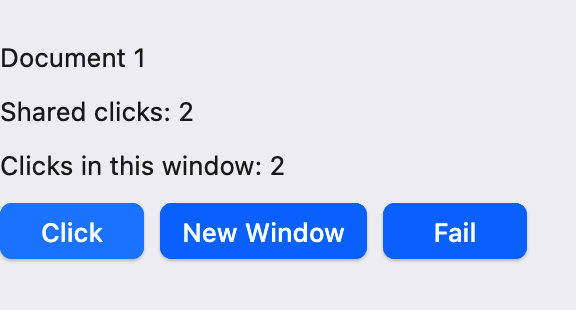
启动后出现标题为 Document 1 的窗口。点 New Window 或按 Cmd+N(Windows、Linux 上为 Ctrl+N)会再打开 Document 2。在任一窗口点 Click,所有窗口的 Shared clicks 同时加一,而 Clicks in this window 只在被点击的窗口中变化。菜单栏的 Window 菜单中有一项灰色的 Open windows: 2,它随窗口数量变化。关闭所有窗口后程序退出。
这个程序的结构是本章的重点:
- 业务对象持有共享状态。
Workspace是普通类,clicks和windowCount是它的 State。每个窗口的根组件都读取同一个workspace.clicks,所以一处修改,所有窗口更新。DocumentView自己的local则每个窗口各有一份。这与状态与数据流中的业务 Store 是同一种做法,只是读取者分布在不同窗口中。 - 在
Resumed中创建窗口。窗口只能在事件循环运行后创建。active.createWindow(windowAttributes { ... })返回原生Window,再用host.attach(window, create)挂载组件。同一个UiHost可以挂载任意多个窗口根。 - 关闭按钮只是请求。用户点击关闭按钮时,应用收到
Window(id, WindowEvent.CloseRequested),窗口并不会自动消失。由应用决定怎么做:这里调用window.requestDestroy()销毁它;也可以先询问用户(见 20.5 节),或者只是隐藏。原生窗口销毁时,挂在上面的 UI 树会自动卸载。 Destroyed之后再整理记录。销毁是异步完成的,最终会收到WindowEvent.Destroyed,这时才把窗口从列表中移除。- 退出策略。
applicationOptions { lastWindowPolicy = LastWindowPolicy.Exit }表示最后一个窗口真正销毁后退出事件循环。Application()的默认值是LastWindowPolicy.KeepRunning:所有窗口关闭后程序仍在运行,适合托盘应用(见 20.6 节),但普通应用忘记设置就会留下一个看不见的进程。 - Quit 菜单项。
MenuRole.Quit是标准角色,它不调用你的回调,而是产生ApplicationEvent.ExitRequested。应用在这里调用requestExit()开始有序退出,也可以先弹出确认。
19.3 应用根:ApplicationComponent
菜单栏不属于任何一个窗口:所有窗口都关闭后它可能仍然存在,在 macOS 上它显示在屏幕顶部。这类“属于整个应用”的原生资源由应用根描述。
AppMenu 继承 ApplicationComponent,用 host.attachApplication(application) { scope -> AppMenu(this, scope) } 挂载。它与普通组件很像:
- 有
render(),读取 State 时同样登记依赖,State 变化后重新 render。示例中菜单项的文字Open windows: N就是这样随windowCount更新的。 - 有
onMount/onUnmount,scope(ApplicationScope)同样提供application、onDispose等。
区别在于它没有窗口、布局和字体,render() 返回的是 ApplicationContent,其中列出若干应用级条目,例如 nativeApplicationMenuBar(menu, key) 和第 20.6 节的托盘图标 nativeTrayIcon(...)。每个 UiHost 至多挂载一个应用根,可以同时有任意多个窗口根。attachApplication 返回 UiApplication?,需要时可调用它的 close() 只卸载应用根。
菜单栏的平台差异。 macOS 只有一条屏幕顶部的全局菜单栏,菜单中的第一个子菜单会作为“应用菜单”显示,标题是程序名而不是你写的 File;把 Quit 放在第一个子菜单中符合 macOS 习惯。Windows 和 Linux 没有全局菜单栏,同一份应用菜单会附着到每个窗口上。需要某个窗口显示不同菜单时,用 nativeWindowMenuBar(content, menu) 包住该窗口的正文(见 20.3 节)。当前平台支持哪种方式,可以查询 active.desktopCapabilities().menus。
19.4 错误隔离:onRootError 与 onApplicationError
某个窗口的组件抛出异常时,是否要连带整个程序一起崩溃?UiHost 的两个参数决定这件事:
onRootError = { id, error -> ... }:某个窗口根在挂载、render、回调等过程中失败时调用,参数是窗口 id 和异常;onApplicationError = { error -> ... }:应用根(菜单、托盘)失败时调用。
框架先清理失败的根——卸载组件树、注销输入和资源——再调用处理器。处理器正常返回,其他窗口和应用根继续工作;处理器重新抛出,整个 UiHost 关闭,异常从 use 传出。两个参数的默认值都是重新抛出,所以不写时任何 UI 异常都会结束程序。
示例中每个窗口都有一个 Fail 按钮,点击时抛出异常。onRootError 打印消息,并调用 workspace.closeWindow(id):失败的只是 UI 树,原生窗口仍然存在,需要应用自己销毁它。点击 Fail 后,这个窗口关闭,其他窗口继续正常计数。
如果失败发生在初次挂载时,host.attach 在处理器返回后得到 None。宿主自身的事件处理、共享渲染器或错误处理器本身失败时,仍会关闭整个宿主。
20. 原生桌面能力
本章介绍控件库 scoop.ui.component 中的原生桌面包装:原生菜单、自绘窗框与全屏、工具窗口、原生模态窗口、系统文件对话框,以及独立库 scoop.ui.component.tray 中的托盘图标。它们都是普通组件或应用级条目,与前面学过的 State、Binding 组合使用。
20.1 先查询能力
不同平台、不同窗口后端支持的能力不同。例如 macOS 支持完全自绘的窗框,但不支持从客户区发起的窗口缩放,也不支持非矩形的原生窗口区域。明确请求一项不支持的能力会抛出 WindowException,而不是悄悄忽略。所以用到这些功能前,应先查询:
val caps = application.desktopCapabilities()
if (caps.frame.beginResize || caps.frame.resizeHitRegions) {
    // A windowResizeRegion can work on this platform.
}
desktopCapabilities() 是 ActiveApplication 的扩展函数,组件中通过 scope.application.desktopCapabilities() 调用。返回值按类别分组:menus(应用/窗口菜单栏)、frame(窗框、拖动、缩放、区域、阴影)、windows(工具窗口、置顶、模态)、positioning(全局位置、工作区)和 fileDialogs。即使能力为 true,具体请求仍可能因窗口状态或桌面服务而失败,所以失败回调也要处理。
20.2 一个使用原生能力的编辑器
下面的 Notes 程序把本章的大部分内容放在一个窗口里:自绘标题栏、原生弹出菜单和右键菜单、文件对话框、工具窗口,以及关闭前的确认窗口。保存为 ui-desktop-native.scoop(下载):
//! dep: scoop:scoop.graphics:0.1.0
//! dep: scoop:scoop.ui:0.1.0
//! dep: scoop:scoop.ui.component:0.1.0
//! dep: scoop:scoop.ui.style:0.1.0
//! dep: scoop:scoop.ui.style.macos:0.1.0
//! dep: scoop:scoop.window:0.1.0
import scoop.graphics.Paint
import scoop.ui.*
import scoop.ui.component.*
import scoop.ui.component.label as labelView
import scoop.ui.component.textarea as textareaView
import scoop.ui.style.Insets
import scoop.ui.style.ThemeMode
import scoop.ui.style.ThemeSource
import scoop.ui.style.currentThemeSource
import scoop.ui.style.macos.macosTheme
import scoop.ui.text.TextEditorState
import scoop.window.*

class NotesApp {
    var editor: EditorView? = None

    fun event(host: UiHost, application: ActiveApplication, event: ApplicationEvent) {
        when (event) {
            case Resumed -> {
                host.attachApplication(application) { scope -> NotesMenu(scope) }
                val window =
                    application.createWindow(
                        windowAttributes {
                            title = "Notes"
                            size = LogicalSize(640.0, 440.0)
                            frame = WindowFrame.Client
                        }
                    )
                host.attach(window, { scope -> EditorView(this, scope) })
            }
            // Both the close button and windowControls() end up here.
            case Window(_, WindowEvent.CloseRequested) -> editor?.confirmClose()
            case ExitRequested(_) -> editor?.confirmClose()
            else -> {}
        }
    }
}

fun editMenu(): NativeMenuContent =
    nativeMenu {
        role(ViewKey.Text("undo"), "Undo", MenuRole.Undo) { shortcut = Some(primaryKey("z")) }
        role(ViewKey.Text("redo"), "Redo", MenuRole.Redo)
        separator(ViewKey.Text("history"))
        role(ViewKey.Text("cut"), "Cut", MenuRole.Cut) { shortcut = Some(primaryKey("x")) }
        role(ViewKey.Text("copy"), "Copy", MenuRole.Copy) { shortcut = Some(primaryKey("c")) }
        role(ViewKey.Text("paste"), "Paste", MenuRole.Paste) { shortcut = Some(primaryKey("v")) }
        role(ViewKey.Text("all"), "Select All", MenuRole.SelectAll) {
            shortcut = Some(primaryKey("a"))
        }
    }

fun primaryKey(character: String): ShortcutChord =
    ShortcutChord(
        ShortcutKey.Logical(LogicalKey.Character(character)),
        ShortcutModifiers(primary = true)
    )

// The application menu: the first submenu becomes the macOS application menu.
class NotesMenu(scope: ApplicationScope): ApplicationComponent(scope) {
    public override fun render(): ApplicationContent =
        ApplicationContent(
            [
                nativeApplicationMenuBar(
                    nativeMenu {
                        submenu(
                            ViewKey.Text("app"),
                            "Notes",
                            nativeMenu {
                                role(ViewKey.Text("quit"), "Quit Notes", MenuRole.Quit) {
                                    shortcut = Some(primaryKey("q"))
                                }
                            }
                        )
                        submenu(ViewKey.Text("edit"), "Edit", editMenu())
                    },
                    ViewKey.Text("menu")
                )
            ]
        )
}

class EditorView(private val app: NotesApp, scope: ComponentScope): Component(scope) {
    val text = TextEditorState("Right-click here for a native context menu.")
    val pinned = state(false)
    val status = state("Ready")
    val tool = scope.nativeToolWindowController()
    val confirm = scope.nativeDialogController<Boolean>(DialogTarget.Owner(scope.nativeWindow))
    // Capabilities describe the current backend; unsupported requests throw.
    val frameCaps = scope.application.desktopCapabilities().frame
    private val theme = currentThemeSource()
    init {
        app.editor = Some(this)
    }

    fun confirmClose() {
        val window = scope.nativeWindow
        val application = scope.application
        val status = this.status
        confirm.open(
            { reply, mount -> ConfirmClose(reply, mount) },
            {
                result -> when (result) {
                    case Accepted(val yes) -> if (yes)
                        application.requestExit()
                    case Cancelled(_) -> status.value = "Close cancelled"
                    case Failed(val error) -> status.value = error.message ?: "Dialog failed"
                }
            },
            attributes =
                windowAttributes {
                    title = "Close Notes?"
                    size = LogicalSize(360.0, 160.0)
                }
        )
    }

    fun showStats() {
        val text = this.text
        tool.open(
            { mount -> StatsView(text, mount) },
            attributes =
                windowAttributes {
                    title = "Statistics"
                    size = LogicalSize(260.0, 140.0)
                },
            appearance = NativeToolAppearance.PreferTool
        )
    }

    public override fun render(): View {
        val pageColor = this.theme.current.value.tokens.palette.background.background
        val view = this
        val window = scope.nativeWindow
        val pinned = this.pinned
        val status = this.status
        val actions =
            nativeMenu {
                checkboxItem(
                    ViewKey.Text("pin"),
                    "Keep on top",
                    pinned.binding(),
                    {
                        on -> window.setWindowLevel(
                            if (on)
                                WindowLevel.AlwaysOnTop
                            else
                                WindowLevel.Normal
                        )
                    }
                )
                item(ViewKey.Text("stats"), "Statistics…", { _ -> view.showStats() }) {
                    enabled = !view.tool.isOpen
                }
                separator(ViewKey.Text("edit-separator"))
                submenu(ViewKey.Text("edit"), "Edit", editMenu())
            }
        // A custom title bar: drag blank space to move, double-click to maximize.
        val titleBar =
            windowDragRegion(
                frame(
                    row {
                        spacing = 10.0
                        alignment = CrossAlignment.Center
                        add(windowControls())
                        label("Notes")
                        add(nativeMenuButton("Actions", actions))
                    }
                ) { padding = Some(Insets(12.0, 6.0, 12.0, 6.0)) }
            )
        val body =
            frame(
                column {
                    spacing = 12.0
                    add(nativeContextMenu(textareaView(view.text) { rows = 8L }, actions))
                    row {
                        spacing = 8.0
                        add(
                            nativeOpenFileButton(
                                "Open…",
                                DialogTarget.Owner(window),
                                {
                                    result -> when (result) {
                                        case Accepted(val path) -> status.value =
                                            "Picked " + path.display()
                                        case Cancelled(_) -> status.value = "Open cancelled"
                                        case Failed(val error) -> status.value =
                                            error.message ?: "Open failed"
                                    }
                                }
                            ) {
                                options =
                                    OpenFileOptions(types = FileTypes.Extensions(["txt", "md"]))
                            }
                        )
                        button("Close…", { window.requestClose() })
                    }
                    label(status.value)
                    if (view.frameCaps.resizeHitRegions || view.frameCaps.beginResize)
                        add(
                            windowResizeRegion(
                                WindowResizeEdge.BottomRight,
                                labelView("Drag to resize ↘")
                            )
                        )
                }
            ) {
                padding = Some(Insets.all(16.0))
                style { background(Some(Paint(pageColor))) }
            }
        return windowChrome(body) {
            frame = WindowFrame.Client
            this.titleBar = Some(titleBar)
            titleBarHeight = 44.0
        }
    }
}

class StatsView(private val text: TextEditorState, scope: ComponentScope): Component(scope) {
    private val theme = currentThemeSource()
    public override fun render(): View {
        val pageColor = this.theme.current.value.tokens.palette.background.background
        // Reading the editor state here re-renders this window when the text changes.
        val content = text.committedText
        return frame(label(f"${content.charLength} characters")) {
            style { background(Some(Paint(pageColor))) }
        }
    }
}

class ConfirmClose(
    private val reply: NativeDialogResponse<Boolean>,
    scope: ComponentScope
): Component(scope) {
    private val theme = currentThemeSource()
    public override fun render(): View {
        val pageColor = this.theme.current.value.tokens.palette.background.background
        val reply = this.reply
        return frame(
            column {
                spacing = 12.0
                label("Quit Notes? Unsaved text will be lost.")
                row {
                    spacing = 8.0
                    button("Quit", { reply.accept(true) })
                    button("Cancel", { reply.cancel() })
                }
            }
        ) {
            padding = Some(Insets.all(20.0))
            style { background(Some(Paint(pageColor))) }
        }
    }
}

fun main() {
    val app = NotesApp()
    context(ThemeSource(macosTheme(ThemeMode.Light))) {
        UiHost(handler = { host, application, event -> app.event(host, application, event) }).use {
            host -> Application().run(host)
        }
    }
}
scoop run ui-desktop-native.scoop --release
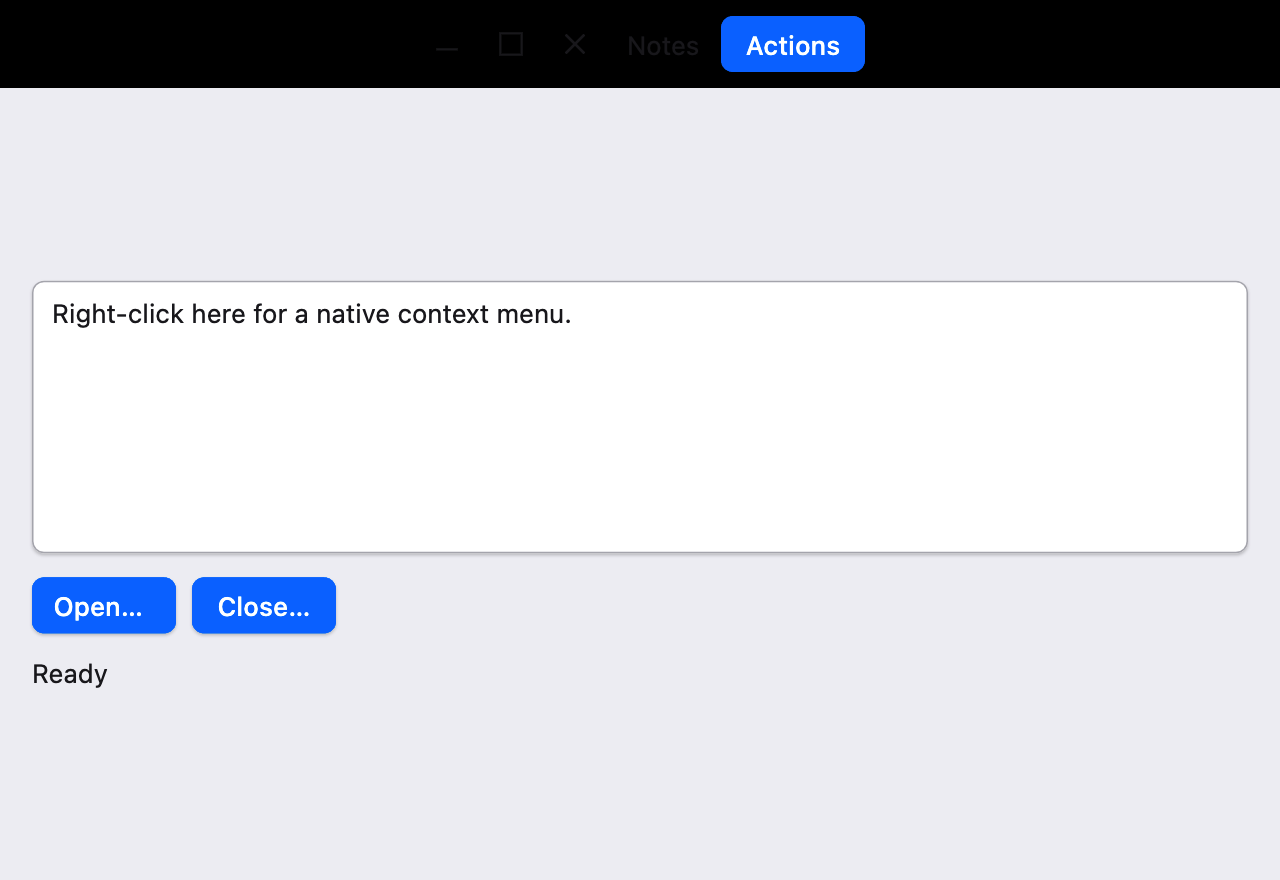
窗口没有系统标题栏,顶部是自绘的一行:窗口按钮、标题 Notes 和 Actions 按钮。可以拖动这一行的空白处移动窗口,双击它最大化。点 Actions 弹出原生菜单,其中有 Keep on top 勾选项、Statistics… 和 Edit 子菜单;在文本框中右键弹出同一个菜单。Statistics… 打开一个小工具窗口,显示字数,并随输入实时变化。点 Open… 弹出系统的打开文件面板,只能选择 .txt、.md 文件,选择或取消的结果显示在按钮下方。点窗口按钮中的关闭、Close… 或按 Cmd+Q,都会弹出确认窗口;在 macOS 上它以 sheet 的形式从窗口顶部滑出。选择 Quit 退出,选择 Cancel 返回编辑。
下面几节分别解释其中的部分。
20.3 原生菜单
原生菜单由系统绘制,外观和键盘行为与其他应用一致。菜单内容用 nativeMenu { ... } 描述,得到不可变的 NativeMenuContent。builder 提供六种条目:
| 条目 | 用途 |
|---|---|
item(key, label, onSelect) { ... } |
普通动作;回调参数是 MenuActivation |
role(key, label, MenuRole.X) |
标准角色:Quit、Minimize、Zoom、Undo、Redo、Cut、Copy、Paste、SelectAll |
checkboxItem(key, label, binding, onCheckedChange) |
勾选项,读写一个 Binding<Boolean> |
radioItem(key, label, value, binding) |
单选项,选中时把 value 写入 binding |
submenu(key, label, content) |
子菜单 |
separator(key) |
分隔线 |
几点规则:
- 每个条目都要有明确的 key,例如
ViewKey.Text("copy"),同一级不能重复。原生菜单不接受按位置匹配的ViewKey.Position。key 让框架在菜单内容变化时保留原生条目的身份。 - 条目 builder 中可设置
enabled、shortcut和image。快捷键用ShortcutChord;ShortcutModifiers(primary = true)在 macOS 上是 Cmd,在 Windows、Linux 上是 Ctrl。 - 编辑角色作用于当前焦点。
Cut、Copy、Paste等角色不需要回调:它们会作用于当前获得焦点的文本框,可用状态也随选区、只读状态和撤销历史自动更新。 - checkbox 直接读写 Binding。示例中
Keep on top绑定到组件的pinnedState,onCheckedChange在值实际改变后调用,这里用它设置窗口层级window.setWindowLevel(WindowLevel.AlwaysOnTop)。 - 菜单文字、
enabled等在所属组件的 render 中求值,读到的 State 同样登记依赖。示例中Statistics…的enabled = !view.tool.isOpen,工具窗口打开后它自动变灰。
同一份菜单内容可以交给四种包装:
| 包装 | 位置 | 说明 |
|---|---|---|
nativeApplicationMenuBar(menu, key) |
应用根的 ApplicationContent 中 |
应用默认菜单栏,根条目必须都是 submenu |
nativeWindowMenuBar(content, menu) |
包住某个窗口的正文 | 该窗口专用的菜单栏,覆盖应用默认菜单 |
nativeMenuButton(text, menu) |
普通 View | 外观与键盘行为同 Button,点击弹出原生菜单 |
nativeContextMenu(content, menu) |
包住任意 View | 右键、菜单键或 Shift+F10 弹出 |
在 macOS 上,窗口专用菜单栏会在该窗口获得焦点时替换屏幕顶部的菜单;在 Windows、Linux 上它就是该窗口自己的菜单栏。弹出菜单的打开和取消也可以由程序控制:在 builder 中设置 handle = Some(NativePopupHandle()),之后调用它的 requestOpen() 或 cancel();onClosed 回调收到本次菜单的结果。
为什么 label 写成了 labelView? 在 column { ... } 等块中,label(...)、textarea(...) 是“追加一个子项”的成员函数,返回 Unit;而 nativeContextMenu、windowResizeRegion 需要一个 View 参数。示例在文件开头用 import scoop.ui.component.textarea as textareaView 引入顶层函数的别名,就可以在块中得到 View 了。
20.4 自绘窗框与全屏
窗框模式。 窗口的边框和标题栏由 WindowFrame 决定:
| 模式 | 效果 |
|---|---|
WindowFrame.System(WindowContentMode.Standard) |
系统标题栏和边框,内容在其下方(默认) |
WindowFrame.System(WindowContentMode.Extended) |
保留系统按钮,内容延伸到标题栏区域 |
WindowFrame.Client |
没有系统标题栏,整个窗口由应用绘制 |
示例在创建窗口时设置 frame = WindowFrame.Client,又在根组件中用 windowChrome(body) { ... } 声明同样的模式。windowChrome 是窗口内容的根包装,每个窗口只能有一个,它负责:
- 把
titleBar放在顶部,高度为titleBarHeight,正文放在其下;Extended模式下按系统按钮的实际位置留出空间; - 运行时修改窗框:
frame等属性改变时更新原生窗口,切换模式不会重建正文; - 可选的
transparent、shadow,以及下面的形状。
标题栏本身只是普通 View,要让它能拖动窗口,需要用 windowDragRegion(content) 包住。拖动区域只处理“没有被子项消费”的输入:标题栏里的按钮、输入框照常工作,空白处按下才开始移动窗口;双击默认切换最大化,右键在平台支持时弹出系统窗口菜单。windowControls() 提供最小化、最大化/还原、关闭三个按钮,外观跟随主题。它的关闭按钮调用 window.requestClose(),与系统关闭按钮一样只产生 CloseRequested,所以示例的退出确认仍然生效。
windowResizeRegion(edge, content) 把一块区域变成缩放把手。macOS 不支持从客户区发起缩放(beginResize 和 resizeHitRegions 都是 false),所以示例先检查能力再添加它,在 macOS 上这行文字不会出现;Client 窗口在 macOS 上仍可以从窗口边缘缩放。
异形窗口。 windowChrome 的三个形状属性彼此独立:
clip:只裁剪本组件的绘制;windowShape:设置原生窗口的形状;inputShape:设置接收鼠标的区域。
形状为 WindowChromeShape 的 Bounds、Rounded(radius)、Ellipse 或 Path(path)。原生形状需要平台支持(能力 frame.windowRegion、frame.inputRegion),macOS 上目前都不支持;但透明窗口加视觉裁剪在各平台都可以用。下面的组件画出一个椭圆形的窗口:
class Badge(scope: ComponentScope): Component(scope) {
    public override fun render(): View {
        val window = scope.nativeWindow
        val body =
            windowDragRegion(
                frame(button("Close", { window.requestClose() })) {
                    style { background(Some(Paint(Color(0.87, 0.92, 1.0)))) }
                }
            )
        // Draw only inside the ellipse; the transparent window shows the desktop elsewhere.
        return windowChrome(body) {
            frame = WindowFrame.Client
            transparent = Some(true)
            clip = Some(WindowChromeShape.Ellipse)
        }
    }
}
这段代码另需 import scoop.graphics.Color 和 import scoop.graphics.Paint。创建窗口时同样要在 windowAttributes { ... } 中设置 frame = WindowFrame.Client 和 transparent = true。这样椭圆之外是透明的,但在不支持 inputShape 的平台上,椭圆外的透明部分仍会接收鼠标。
全屏。 普通的独立窗口可以用 window.requestFullscreen(true) 进入全屏、requestFullscreen(false) 退出,全屏使用窗口当前所在的显示器,退出后恢复原来的位置和大小。请求是异步的,返回 RequestStatus.Requested 只表示请求已经提交;实际状态从 window.isFullscreen 读取,并在窗框变化时重新读取。工具窗口和有父窗口的窗口返回 RequestStatus.Unsupported,窗口正被模态窗口阻塞时抛出 WindowException:
class Viewer(scope: ComponentScope) : Component(scope) {
    private val fullscreen = state(false)

    public override fun onMount() {
        // Read the state the system confirmed each time the window frame changes.
        scope.observeFrameMetrics { fullscreen.value = scope.nativeWindow.isFullscreen }
    }

    public override fun render(): View {
        val window = scope.nativeWindow
        val text = if (fullscreen.value) "Exit full screen" else "Enter full screen"
        return button(text, { window.requestFullscreen(!window.isFullscreen) })
    }
}
requestFullscreen 和 isFullscreen 是 scoop.window 中的扩展,需要声明 //! dep: scoop:scoop.window:0.1.0 并导入 scoop.window.requestFullscreen、scoop.window.isFullscreen。在 macOS 上,进入或退出全屏的动画完成前再次请求相反的状态会抛出 WindowException,按钮可以等 isFullscreen 更新后再切换。全屏期间通常还要隐藏自绘标题栏中的拖动与缩放区域,工具链示例 native-desktop 演示了这种组合。
20.5 工具窗口、模态窗口与文件对话框
这三类窗口都由控制器管理。控制器在组件字段中创建,属于该组件的 scope,组件卸载时自动关闭它拥有的窗口,迟到的回调也不再执行:
val tool = scope.nativeToolWindowController()
val confirm = scope.nativeDialogController<Boolean>(DialogTarget.Owner(scope.nativeWindow))
它们的 open(...) 都返回 Boolean:已有一个活动请求或组件已卸载时返回 false,不会重复打开。isOpen、isPending 可以在 render 中读取,用来禁用按钮。
工具窗口 nativeToolWindowController() 打开一个属于当前窗口的非模态窗口:它不阻塞父窗口,随父窗口最小化和恢复。open(create, onClosed, attributes, appearance) 的 create 为新窗口创建根组件。appearance 为 RequireTool(默认,平台不支持工具窗口外观时报错)、PreferTool(不支持时使用普通外观)或 Normal。示例的统计窗口直接读取主窗口的 TextEditorState,所以两个窗口自动同步。
模态窗口 nativeDialogController<T>(target) 打开一个返回类型为 T 的模态窗口:
target为DialogTarget.Owner(window)时只阻塞那个窗口,其他窗口仍可操作;为DialogTarget.Application时阻塞整个应用。create接收(NativeDialogResponse<T>, ComponentScope)。对话框内容调用reply.accept(value)或reply.cancel()结束。onResult收到NativeDialogResult<T>:Accepted(value)、Cancelled(reason)或Failed(error)。窗口关闭按钮相当于取消。
在 macOS 上,Owner 模态默认显示为附着在父窗口上的 sheet。这样的确认窗口比同窗口的 dialog(见弹层与导航)多了一个真正的原生窗口,适合退出确认这类需要阻塞原生关闭流程的场合;普通表单对话框用 dialog 就够了。
系统文件对话框。 最简单的方式是 nativeOpenFileButton(text, target, onResult) 和 nativeSaveFileButton(...):它们就是普通按钮,点击时打开系统面板,面板打开期间按钮自动禁用。在 builder 中用 options = OpenFileOptions(types = FileTypes.Extensions(["txt", "md"])) 限制文件类型,或用 SaveFileOptions(suggestedName = ...) 给出默认文件名。
不想用按钮时,在组件中创建 scope.fileDialogController(),然后调用:
| 方法 | 结果类型 |
|---|---|
openFile(target, onResult) |
FileDialogResult<Path> |
openFiles(target, onResult) |
FileDialogResult<Array<Path>> |
saveFile(target, onResult) |
FileDialogResult<Path> |
selectDirectory(target, onResult) |
FileDialogResult<Path> |
结果同样分为 Accepted、Cancelled、Failed 三种。路径是 scoop.platform.fs.Path,界面上用 path.display() 显示。注意保存面板只选择路径,不会创建或写入文件,写文件是应用自己的事。
20.6 托盘图标
托盘图标(macOS 菜单栏右侧的状态项、Windows 通知区域图标、Linux 的 StatusNotifierItem)放在独立的 scoop.ui.component.tray 库中,不用托盘的程序不会引入它的依赖。下面的提醒程序关闭窗口后仍留在托盘中。保存为 ui-desktop-tray.scoop(下载):
//! dep: scoop:scoop.graphics:0.1.0
//! dep: scoop:scoop.ui:0.1.0
//! dep: scoop:scoop.ui.component:0.1.0
//! dep: scoop:scoop.ui.component.tray:0.1.0
//! dep: scoop:scoop.ui.style:0.1.0
//! dep: scoop:scoop.ui.style.macos:0.1.0
//! dep: scoop:scoop.window:0.1.0
//! dep: scoop:scoop.tray:0.1.0
import scoop.tray.TrayActivationKind
import scoop.graphics.Paint
import scoop.ui.*
import scoop.ui.component.*
import scoop.ui.component.tray.*
import scoop.ui.style.ThemeMode
import scoop.ui.style.ThemeSource
import scoop.ui.style.currentThemeSource
import scoop.ui.style.macos.macosTheme
import scoop.window.*

class TrayApp {
    val paused = state(false)
    val reminders = state(0)
    private var host: UiHost? = None
    private var active: ActiveApplication? = None
    private var window: Window? = None

    fun event(host: UiHost, application: ActiveApplication, event: ApplicationEvent) {
        when (event) {
            case Resumed -> {
                this.host = Some(host)
                active = Some(application)
                host.attachApplication(application) { scope -> TrayRoot(this, scope) }
                showWindow()
            }
            // Closing the window only hides the app in the tray.
            case Window(_, WindowEvent.CloseRequested) -> window?.requestDestroy()
            case Window(_, WindowEvent.Destroyed) -> window = None
            case ExitRequested(_) -> application.requestExit()
            else -> {}
        }
    }

    fun showWindow() {
        when (window) {
            case Some(val existing) -> existing.requestFocus()
            case None -> {
                val created =
                    active!!.createWindow(
                        windowAttributes {
                            title = "Reminders"
                            size = LogicalSize(360.0, 200.0)
                        }
                    )
                window = Some(created)
                host!!.attach(created, { scope -> ReminderView(this, scope) })
            }
        }
    }
}

// A filled circle drawn at 32×32 pixels for a 16×16 point icon; template images follow the menu bar's light/dark color on macOS.
fun dotIcon(): DesktopImage {
    val size = 32
    val pixels =
        Array<UInt8>(size.toLong() * size.toLong() * 4L) {
            index ->
            val pixel = index / 4L
            val x = (pixel % size.toLong()).toDouble() - 15.5
            val y = (pixel / size.toLong()).toDouble() - 15.5
            val inside = x * x + y * y <= 12.0 * 12.0
            if (index % 4L == 3L && inside)
                255.toUByte()
            else
                0.toUByte()
        }
    return DesktopImage(
        LogicalSize(16.0, 16.0),
        [DesktopImageRepresentation(PhysicalSize(size, size), pixels)],
        template = true
    )
}

class TrayRoot(private val app: TrayApp, scope: ApplicationScope): ApplicationComponent(scope) {
    private val icon = dotIcon()
    public override fun render(): ApplicationContent {
        val app = this.app
        val application = scope.application
        val menu =
            nativeMenu {
                item(ViewKey.Text("show"), "Show Window", { _ -> app.showWindow() })
                checkboxItem(ViewKey.Text("pause"), "Pause Reminders", app.paused.binding())
                separator(ViewKey.Text("quit-separator"))
                item(ViewKey.Text("quit"), "Quit", { _ -> application.requestExit() })
            }
        return ApplicationContent(
            [
                nativeTrayIcon(icon, ViewKey.Text("tray")) {
                    tooltip =
                        Some(
                            if (app.paused.value)
                                "Reminders (paused)"
                            else
                                f"Reminders: ${app.reminders.value}"
                        )
                    this.menu = Some(menu)
                    onActivated =
                        {
                            event -> if (event.kind == TrayActivationKind.Primary)
                                app.showWindow()
                        }
                }
            ]
        )
    }
}

class ReminderView(private val app: TrayApp, scope: ComponentScope): Component(scope) {
    private val theme = currentThemeSource()
    public override fun render(): View {
        val pageColor = this.theme.current.value.tokens.palette.background.background
        val app = this.app
        return frame(
            column {
                spacing = 12.0
                label(f"Reminders sent: ${app.reminders.value}")
                label(
                    if (app.paused.value)
                        "Paused from the tray menu"
                    else
                        "Active"
                )
                button("Send reminder", { app.reminders.value += 1 }) {
                    enabled = !app.paused.value
                }
                label("Close this window: the app keeps running in the tray.")
            }
        ) { style { background(Some(Paint(pageColor))) } }
    }
}

fun main() {
    val app = TrayApp()
    context(ThemeSource(macosTheme(ThemeMode.Light))) {
        UiHost(handler = { host, application, event -> app.event(host, application, event) }).use {
            // KeepRunning is the default: the tray outlives the last window.
            host -> Application(
                applicationOptions { lastWindowPolicy = LastWindowPolicy.KeepRunning }
            ).run(host)
        }
    }
}
scoop run ui-desktop-tray.scoop --release
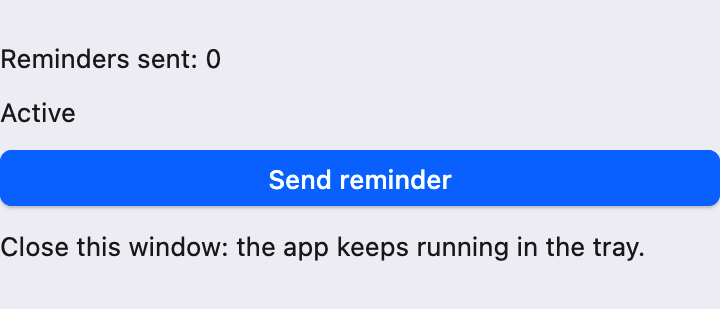
启动后出现 Reminders 窗口,菜单栏右侧多了一个实心圆点图标,鼠标悬停时提示 Reminders: 0。点 Send reminder 后提示中的数字随之增加。关闭窗口,程序不会退出;点托盘图标弹出菜单,选择 Pause Reminders,提示变为 Reminders (paused),再选 Show Window 会重新打开窗口,窗口中的按钮变为不可用。选择 Quit 退出程序。
要点:
- 托盘是应用级资源,所以
nativeTrayIcon(image, key) { ... }写在应用根的ApplicationContent中,与菜单栏并列。tooltip、menu在 render 中求值,读取的 State 变化后托盘自动更新,不需要任何窗口。 - 图标是
DesktopImage:给出逻辑尺寸(16×16)和一份或多份 RGBA 像素(这里是 32×32,供高分屏使用)。template = true表示模板图像,macOS 只使用它的透明度,并按菜单栏的明暗自动着色。 onActivated收到TrayActivation。示例在主点击(TrayActivationKind.Primary)时打开窗口;设置了菜单时,平台可能直接弹出菜单而不报告主点击。- 托盘应用要用
LastWindowPolicy.KeepRunning,并提供明确的退出入口,这里是菜单中的 Quit。
平台差异:Linux 的托盘需要桌面提供 StatusNotifierItem 宿主(部分桌面需要安装扩展),菜单由宿主显示,因此程序化弹出菜单(NativeTrayHandle.requestMenu())不受支持;注册成功也不代表图标一定可见,可能被收进溢出区。Wayland 下普通窗口不能定位到托盘图标旁边。更完整的组合,包括托盘锚点查询和在图标旁显示面板,见工具链附带的示例 <Root>/src/scoop.ui.component/examples/native-desktop(<Root> 是 scoop-install show 显示的工具链根目录)。
21. 异步与后台任务
UI 的所有工作——事件回调、render、State 读写——都在同一个线程上进行,这里称为 UI 线程(文档中也称 owner 线程)。回调中做耗时的事,窗口就会卡住。处理办法分两类:
- 等待(网络、文件、定时):用 asyncio 协程。协程挂起时不占用线程,恢复后仍在 UI 线程上执行,可以直接写 State。
- 计算(压缩、校验、解析大文件):放到后台线程。后台线程不能访问 State、组件或窗口,结果要经
ApplicationProxy投递回 UI 线程。
21.1 后台线程与进度
下面的程序在后台线程中统计两千万以内的素数,界面显示进度条,可以取消、重新开始,计算期间其他按钮照常响应。保存为 ui-desktop-worker.scoop(下载):
//! dep: scoop:scoop.graphics:0.1.0
//! dep: scoop:scoop.platform:0.1.0
//! dep: scoop:scoop.ui:0.1.0
//! dep: scoop:scoop.ui.component:0.1.0
//! dep: scoop:scoop.ui.style:0.1.0
//! dep: scoop:scoop.ui.style.macos:0.1.0
//! dep: scoop:scoop.window:0.1.0
import scoop.graphics.Paint
import scoop.platform.concurrent.Thread
import scoop.ui.*
import scoop.ui.component.*
import scoop.ui.style.ThemeMode
import scoop.ui.style.ThemeSource
import scoop.ui.style.currentThemeSource
import scoop.ui.style.macos.macosTheme
import scoop.window.*

enum Phase {
    Idle, Running, Cancelled, Done
}

// UI-side model. Only the UI owner thread reads or writes these states.
class PrimeModel {
    val phase = state(Phase.Idle)
    val percent = state(0.0)
    val message = state("Press Start to count primes.")
}

// One run of the computation. The worker thread only touches `cancelled`.
class PrimeTask(val limit: Long) {
    val cancelled = AtomicBoolean(false)
    var thread: Thread? = None
}

class PrimeWorker(private val proxy: ApplicationProxy, private val model: PrimeModel): Closeable {
    private var current: PrimeTask? = None
    private val running = ArrayList<PrimeTask>()

    fun start(limit: Long) {
        cancel()
        val task = PrimeTask(limit)
        current = Some(task)
        running.add(task)
        model.phase.value = Phase.Running
        model.percent.value = 0.0
        model.message.value = f"Counting primes below ${limit}…"
        val proxy = this.proxy
        val worker = this
        task.thread =
            Some(
                Thread.start {
                    // Runs on another native thread: no State, View or Window access here.
                    var found = 0L
                    var n = 2L
                    val step = limit / 100L
                    while (n < limit && !task.cancelled.load(MemoryOrder.Acquire)) {
                        if (isPrime(n))
                            found += 1L
                        if (n % step == 0L) {
                            val percent = n.toDouble() * 100.0 / limit.toDouble()
                            proxy.post { _ -> worker.progress(task, percent) }
                        }
                        n += 1L
                    }
                    val count = found
                    proxy.post { _ -> worker.finish(task, count) }
                }
            )
    }

    // The two callbacks below run on the UI owner thread, posted by the worker.
    private fun progress(task: PrimeTask, percent: Double) {
        if (isCurrent(task))
            model.percent.value = percent
    }

    private fun finish(task: PrimeTask, count: Long) {
        task.thread?.join()
        task.thread = None
        removeRunning(task)
        if (!isCurrent(task))
            return
        current = None
        if (task.cancelled.load(MemoryOrder.Acquire)) {
            model.phase.value = Phase.Cancelled
            model.message.value = "Cancelled."
        } else {
            model.phase.value = Phase.Done
            model.percent.value = 100.0
            model.message.value = f"Found ${count} primes below ${task.limit}."
        }
    }

    private fun removeRunning(task: PrimeTask) {
        var index = 0L
        while (index < running.size) {
            if (running[index] === task) {
                running.removeAt(index)
                return
            }
            index += 1L
        }
    }

    private fun isCurrent(task: PrimeTask): Boolean =
        when (current) {
            case Some(val value) -> value === task
            case None -> false
        }

    fun cancel() {
        when (current) {
            case Some(val task) -> {
                task.cancelled.store(true, MemoryOrder.Release)
                model.phase.value = Phase.Cancelled
                model.message.value = "Cancelling…"
            }
            case None -> {}
        }
        current = None
    }

    // Called after the event loop has returned: stop and wait for every thread.
    public override fun close() {
        for (task in running)
            task.cancelled.store(true, MemoryOrder.Release)
        for (task in running)
            task.thread?.join()
        running.clear()
    }
}

fun isPrime(n: Long): Boolean {
    if (n < 2L)
        return false
    var divisor = 2L
    while (divisor * divisor <= n) {
        if (n % divisor == 0L)
            return false
        divisor += 1L
    }
    return true
}

class PrimeView(
    private val model: PrimeModel,
    private val worker: PrimeWorker,
    scope: ComponentScope
): Component(scope) {
    private val clicks = state(0)
    private val theme = currentThemeSource()
    public override fun render(): View {
        val pageColor = this.theme.current.value.tokens.palette.background.background
        val model = this.model
        val worker = this.worker
        val clicks = this.clicks
        val running = model.phase.value == Phase.Running
        return frame(
            column {
                spacing = 12.0
                label(model.message.value)
                progress(model.percent.value)
                row {
                    spacing = 8.0
                    button(
                        if (running)
                            "Restart"
                        else
                            "Start",
                        { worker.start(20000000L) }
                    )
                    button("Cancel", { worker.cancel() }) { enabled = running }
                    // Stays responsive while the worker is busy.
                    button(f"Clicks: ${clicks.value}", { clicks.value += 1 })
                }
            }
        ) {
            width = Some(420.0)
            style { background(Some(Paint(pageColor))) }
        }
    }
}

fun main() {
    val model = PrimeModel()
    val application = Application(applicationOptions { lastWindowPolicy = LastWindowPolicy.Exit })
    PrimeWorker(application.proxy(), model).use {
        worker -> context(ThemeSource(macosTheme(ThemeMode.Light))) {
            UiHost {
                host,
                active,
                event -> when (event) {
                    case Resumed -> host.attach(
                        active.createWindow(
                            windowAttributes {
                                title = "Primes"
                                size = LogicalSize(480.0, 220.0)
                            }
                        ),
                        { scope -> PrimeView(model, worker, scope) }
                    )
                    case Window(_, WindowEvent.CloseRequested) -> active.requestExit()
                    case ExitRequested(_) -> active.requestExit()
                    else -> {}
                }
            }.use { host -> application.run(host) }
        }
    }
}
scoop run ui-desktop-worker.scoop --release
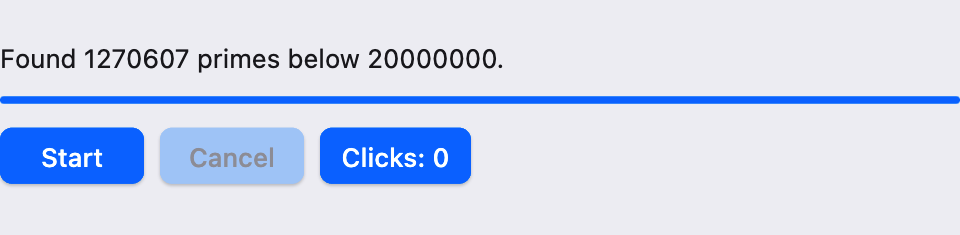
点 Start,文字变为 Counting primes below 20000000…,进度条在几秒内走满(在 Apple M 系列芯片上约 3 秒),最后显示 Found 1270607 primes below 20000000.。计算期间点 Clicks: N 计数照常增加,说明 UI 线程没有被占用。中途点 Cancel 显示 Cancelled.;点 Restart 会取消当前计算并从头开始,旧计算的进度不会再出现。计算中关闭窗口,程序会立即退出。
示例中各部分的分工:
后台线程只做计算。 Thread.start { ... }(scoop.platform.concurrent)在新的原生线程上运行代码块。块中只读写局部变量和 task.cancelled(一个 AtomicBoolean),从不碰 model 中的 State。需要通知界面时调用 proxy.post { _ -> ... }:块中的代码会排进 UI 线程的队列,稍后在 UI 线程上执行,所以 worker.progress(...)、worker.finish(...) 可以安全地写 State。
ApplicationProxy 在启动前取得。 application.proxy() 在调用 run 之前就可以使用,也可以在组件中用 scope.application.proxy() 取得。post 返回 false 表示应用已经在退出,投递没有被接受;即使返回 true,退出时还没执行的任务也可能被丢弃,所以必需的清理不能依赖投递。
取消是协作式的。 cancel() 只是把 cancelled 设为 true,后台循环每一步都检查它,看到后尽快结束。线程不能被强行终止,所以计算代码要在合适的位置检查取消标志。
新任务替换旧任务。 重新开始时,旧线程可能还在运行,或者它投递的进度还在队列中。progress 和 finish 先用 isCurrent(task) 判断结果是否来自当前任务,过期的结果直接丢弃。每个任务对象就是它的身份,不需要额外的编号。
进度不要投递得太频繁。 示例每完成 1% 投递一次,总共约 100 次。如果每处理一个元素就投递一次,队列会被大量任务塞满,反而拖慢界面。更复杂的程序可以只保留最新一份进度、至多排一个待执行通知,工具链附带的下载示例就是这样做的。
退出时回收线程。 原生线程不会随窗口关闭而结束。PrimeWorker 实现了 Closeable,main 用 PrimeWorker(...).use { ... } 包住整个 UI:application.run 返回后,close() 设置所有取消标志并 join() 每个线程,确保进程退出前后台工作已经停下。任务正常结束时,finish 也会 join() 一次,这时线程已经执行到最后一行,等待几乎是瞬时的。
21.2 协程:在 UI 线程上等待
需要协程时,把 application.run(host) 换成 application.runWithAsyncio(host)(scoop.window.asyncio,另需依赖 scoop:scoop.asyncio 和 scoop:scoop.window.asyncio)。这样窗口事件循环和 asyncio 的事件循环合为一个,在应用事件中可以取得两个对象:
currentApplicationScope():应用的协程作用域,用它的launch { ... }启动协程;应用退出时,其中未完成的协程会被取消。currentEventLoop():当前 asyncio 事件循环,提供sleep(duration)等挂起操作。
下面的组件是一个倒计时按钮,点击后从 10 秒开始倒数,再次点击重新开始:
class Countdown(private val jobs: CoroutineScope, scope: ComponentScope): Component(scope) {
    private val seconds = state(0)
    private var timer: Job? = None
    private val loop = currentEventLoop()

    fun restart() {
        timer?.cancel()
        val seconds = this.seconds
        seconds.value = 10
        val loop = this.loop
        timer =
            Some(
                jobs.launch {
                    // Coroutines launched here run on the UI owner thread,
                    // so they may write State directly.
                    while (seconds.value > 0) {
                        loop.sleep(Duration.seconds(1L))
                        seconds.value -= 1
                    }
                }
            )
    }

    public override fun render(): View {
        val view = this
        return frame(button(f"Remaining: ${seconds.value}s (restart)", { view.restart() }))
    }
}
挂载时传入应用的协程作用域:
case Resumed -> {
    val jobs = currentApplicationScope()
    host.attach(active.createWindow(), { scope -> Countdown(jobs, scope) })
}
并用 UiHost { ... }.use { host -> Application().runWithAsyncio(host) } 运行。文件开头需要 import scoop.asyncio.*、import scoop.time.Duration 和 import scoop.window.asyncio.*。
launch 返回 Job,cancel() 取消它:协程在下一个挂起点(这里是 sleep)结束。重新开始前先取消旧的 Job,就不会有两个倒计时同时运行。currentEventLoop() 在组件构造时(挂载发生在应用事件中)取得并保存在字段中。组件卸载时如果还有协程在运行,可以在 onUnmount 或 scope.onDispose { ... } 中取消它。
21.3 网络请求
HTTP 请求属于“等待”,用协程完成:在应用的协程作用域中用 HttpClient.open(jobs)(scoop.http.client)打开客户端,在协程中发起请求,进度回调同样运行在 UI 线程上。下载完成后若还要对文件做计算(例如计算 SHA-256),再交给 21.1 节的后台线程。
工具链附带了完整的示例 <Root>/src/scoop.ui.component/examples/download:它用 client.download(request, destination, httpDownloadOptions { ... }) 下载文件并显示进度,然后在后台线程中校验摘要;支持取消和重新开始,旧任务的迟到结果不会覆盖新任务,退出时回收尚未结束的线程。它需要网络或本地 HTTP 服务,运行方式见该目录的 README。
常见错误与继续阅读
| 现象 | 原因与处理 |
|---|---|
| 点关闭按钮窗口没有反应 | CloseRequested 只是请求;在处理器中调用 window.requestDestroy()、requestExit(),或打开确认窗口 |
| 关掉所有窗口后进程仍在运行 | Application() 默认 LastWindowPolicy.KeepRunning;普通应用设为 Exit,托盘应用提供 Quit |
| Cmd+Q/Quit 菜单项没有效果 | MenuRole.Quit 产生 ExitRequested;在处理器中调用 requestExit() |
启动时报 uncaught exception … WindowException |
请求了平台不支持的能力(例如 macOS 上的 windowResizeRegion);先查询 desktopCapabilities() |
| 一个窗口出错,整个程序退出 | onRootError 默认重新抛出;提供处理器并销毁出错的窗口 |
| 菜单项报 key 相关错误 | 原生菜单条目必须使用明确且同级唯一的 key,不能用 ViewKey.Position |
| 窗口专用菜单栏没有出现 | 平台只有全局菜单栏时,它只在该窗口获得焦点时替换应用菜单 |
| 后台线程写 State 报错 | State 只能在 UI 线程访问;经 proxy.post { ... } 投递回去再写 |
| 重新开始后进度条来回跳 | 旧任务的进度仍在投递;按任务身份丢弃过期结果 |
| 程序退出时卡住或后台线程被遗弃 | 在 run 返回后取消并 join() 所有线程 |
| 托盘图标不显示(Linux) | 桌面缺少 StatusNotifierItem 宿主,或图标被收进溢出区 |
下一篇测试 UI介绍如何用 scoop test 测试 State 与业务逻辑,以及如何在隐藏窗口中测试组件。各能力的完整合同见 UI 桌面、原生菜单、窗框和原生窗口规范。